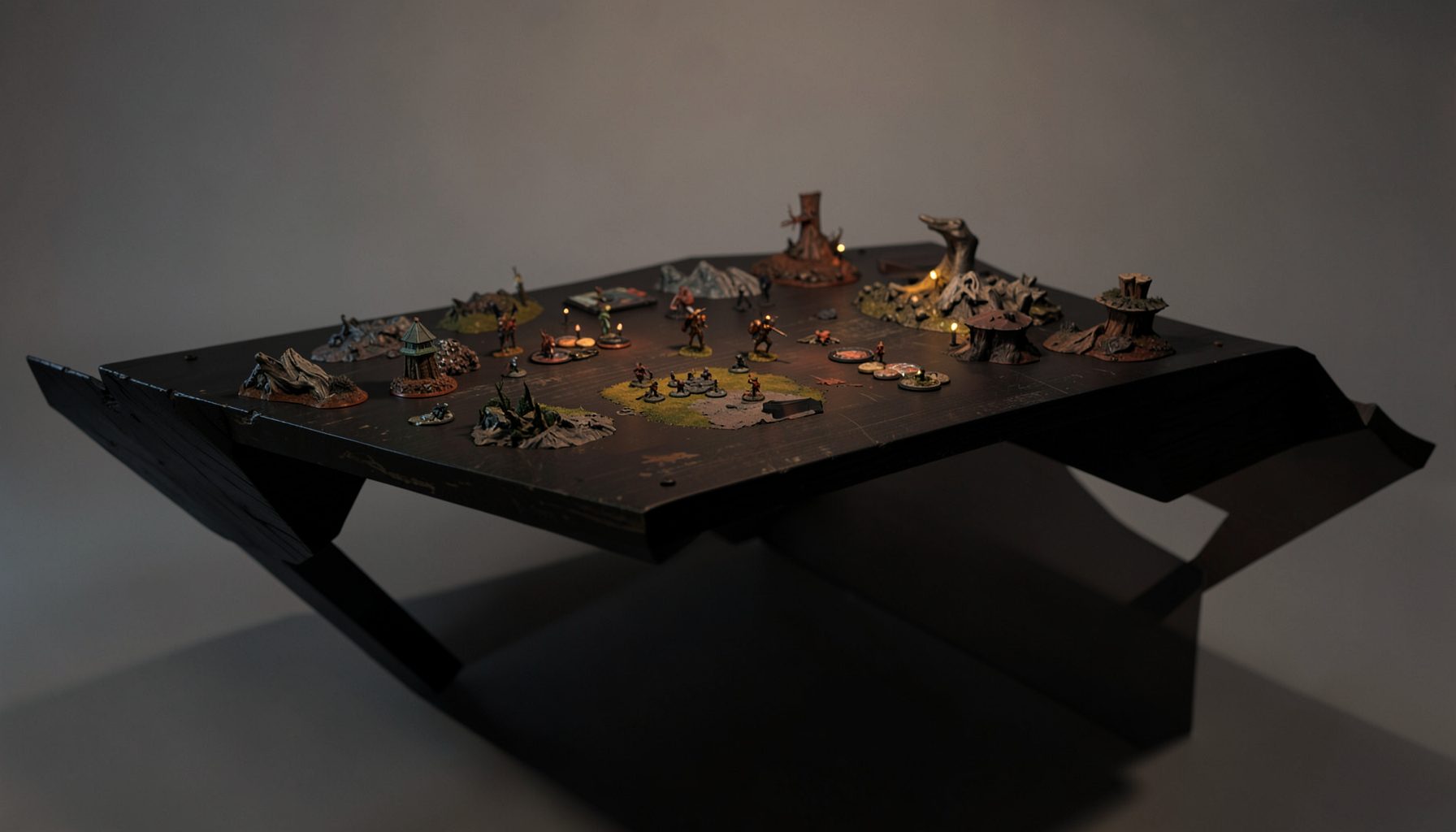
Live-streamed games, recorded matches, and event data gathered in one place.
Kill Team Stream hosts quality live streaming of Kill Team content — tournaments throughout the year on Twitch, regular games streamed to the channel, and tournament data gathered so players can see what's happening in the scene. Powered by WARHAMMER.
Browse tournamentsOfferings
Tournaments
Multiple Kill Team tournaments hosted throughout the year, all live-streamed on our Twitch channel.
Videos
Streams are recorded and uploaded to YouTube alongside original video content we produce.
Event Data
Tournament packets from past events plus resources for upcoming Kill Team tournaments.
Site Directory
Overlay graphics for your first Kill Team stream
Overlaying graphics on your Kill Team streams should give viewers instant information without hiding the battlefield. A useful package can identify the player, show the selected faction, track rounds, and carry event or sponsor details. For a beginner, the aim is not a crowded broadcast screen; it is a consistent visual language that survives a noisy venue and a recording watched the next morning.
An overlay is the set of images, text, borders and panels placed over gameplay. Unlike a camera border, it can update between rounds and remain on screen while the action moves underneath. Good overlays separate the permanent frame from temporary information, such as a player's name appearing during an interview and disappearing before deployment.
Begin with the broadcast, not the artwork. List the scenes you need, sketch where each item will sit, and decide which details must remain visible. Then create one master file at 1920 by 1080 pixels, export each element with a transparent background, and keep a copy of the fonts and editing files. This workflow makes later changes much easier than redrawing everything from a finished stream.
Kill Team Stream brings together tournament broadcasts, recorded matches, regular gameplay videos and commentary, so its community sees both polished events and practical experiments. The streaming FAQ is worth checking for channel-specific questions before you commit to a layout. It also helps to watch several Australian community broadcasts and note which graphics clarify the game rather than compete with it.
Choose a visual direction before designing
First decide what the overlay must communicate. A community match may need player names, faction labels and a round counter, while a tournament package may also need a bracket, event logo and sponsor strip. Write these requirements beside your scene list so every graphic has a job and duplicate panels do not appear.
Choose a restrained palette that suits the channel rather than copying the colour of a single faction. Two or three strong colours, one light text colour and one dark text colour are usually enough. High contrast matters on a laptop in a bright games shop or a television viewed across a room. Check that coloured text remains readable against both pale deployment zones and dark battlefield areas.
Typography needs to be readable before it feels decorative. Use one licensed display face for headings and one clear sans-serif for names, scores and legal text. Avoid very thin fonts, long all-capital labels and tiny sponsor wording. Test the type at the size it will appear in OBS, not at full size in the design program.
Plan for Australian tournament days
Australian tournament coverage spans Sydney, Melbourne, Brisbane, Perth, Adelaide and regional centres, so time zones belong in the production plan. Daylight-saving changes affect Melbourne, Sydney and Adelaide, while Brisbane and Perth keep standard time. Confirm every commentator's clock, label VODs with the AEST or AEDT time, and include the event date so interstate viewers can find the broadcast later.
Local hobby shops and game stores often host after-work meetups, previews and casual nights where streamers can test an overlay with real feedback. Australian viewers may watch the resulting VOD on a phone during a commute or on a television at home. Ask attendees to check the lower corners and name plates from their seats; this reveals problems that a close monitor hides.
The local technology market makes a simple studio setup accessible. JB Hi-Fi, PLE and Australian online retailers commonly list webcams, microphones, capture devices and Elgato hardware in Australian dollars. Compare local warranty support, GST-inclusive pricing and secondhand options before buying. Spend the first part of the budget on a stable camera, clear microphone and reliable upload rather than an elaborate light rig.
There are several practical ways to create the artwork, and the cheapest option is not always the quickest to maintain.
| Creation method | Typical cost | Learning curve | Strongest use | Main limitation |
|---|---|---|---|---|
| Canva or similar template editor | Free tier or paid plans | Low | Lower-thirds, panels and social artwork | Fine control and animation are limited |
| Affinity, Photoshop or another raster editor | One-off or subscription | Medium | Detailed transparent PNGs and reusable templates | More manual setup and file management |
| OBS or Streamlabs controls | Free | Low to medium | Text, counters and live scene changes | Less suitable for intricate custom artwork |
| HTML, CSS or a browser-based app | Usually free | High | Automatic data and highly custom layouts | Hosting, caching and troubleshooting add complexity |
For most first streams, the raster-editor route or a good template is enough. Keep score updates manual in OBS, then move to browser-based data only when the manual process becomes a genuine burden.
Create readable, reusable graphics
Build the main canvas at 1920 by 1080, which matches a standard 1080p broadcast and leaves room for a full-screen game feed. Keep essential text inside generous margins so platform controls and cropping do not cover it. Place panels over scenery that rarely changes, such as the upper edge of the table, and check every scene rather than assuming the battlefield layout stays fixed.
Export static elements as PNG files with transparency. A solid white background may look acceptable on the design canvas but will cover the game when imported. Use clean layer names such as faction-header, player-lower-third and round-counter, and save each panel as a separate image. This allows OBS to hide and reveal elements independently and prevents one opaque layer from masking the whole feed.
Text should fit the time viewers have to read it. Player names, mission names and round results need the largest type, while secondary details can be smaller but must still meet the minimum size on a phone. Use solid or softly translucent panels behind text rather than shadows alone. Test red-green colour combinations with a colour-blindness simulator, and avoid placing essential information over visually busy terrain.
Save fonts, logos, colour values and source layouts in one project folder. Affinity and Photoshop handle this well, while free options such as GIMP or Photopea can manage the basic PNG workflow. Check whether a template service permits use on monetised Twitch and YouTube channels. Reusing your own design system keeps updates quick when a player, sponsor or event changes.
Assemble and test the overlay
Install the graphics before the event and create separate scenes for deployment, gameplay, results and interviews. In OBS Studio, add an Image source for each transparent PNG, choose the file, and use Transform to position it. Hold Ctrl while dragging to preserve proportions, then use Align to place elements precisely. Lock finished scene layouts so a stray click cannot move the tournament frame during a round.
Use a Browser source only for information that needs to update automatically, such as a round score pulled from a local web page. Enter the hosted page or local HTML file, set the dimensions to match the panel, and leave transparency enabled if the page background is transparent. OBS caches browser content, so clear the cache or restart the source after a change. A manual scoreboard is usually more dependable for a beginner's first tournament.
Run a full rehearsal before streaming. Record ten minutes of play, an interview and a round transition, then watch the file without touching the controls. Check names for misspellings, logos for unwanted transparency, audio for clipping and lower-thirds for overlap. Australian venues can produce uneven sound, so position the microphone close to the commentator and test speech against the loudest game effects.
Connection quality also needs a local check. Players may use fixed-line NBN services, fixed wireless, regional broadband or mobile hotspots, and upload performance can differ sharply from download speed. For 1080p at 30 frames per second, many creators start near 6,000 kbps and adjust after their own tests. Run OBS's bandwidth test at the venue, use Ethernet where possible, and keep a lower-bitrate scene ready for congestion.
Protect the stream and learn from results
Game artwork, music and broadcast footage can attract copyright claims. Warhammer factions, artwork and logos are protected, so use only images supplied in an event packet or cleared for your stream. The same care applies to background music, video clips and sound effects. A YouTube upload can be held for copyright review, while a stream claim may mute or divert part of the broadcast. Keep proof of each licence.
Paid activity brings Australian obligations into the production. Sponsor claims and prices may fall under the Australian Consumer Law, while misleading advertising can create broader legal problems. Use a contract defining what the sponsor may say, place sponsored-content disclosures where viewers will see them, and avoid presenting a sponsor's claim as your own endorsement. State and territory privacy laws can apply even when a small group runs the event, so do not show email addresses, phone numbers or unnecessary personal details.
Measure the overlay after the event. Note when viewers joined, which VOD sections were replayed, and whether chat understood the score and faction labels. Keep separate copies for each tournament and reuse the strongest elements rather than continually changing the channel's identity. A downloadable package containing PNG files, editable sources and a short placement guide also helps local games shops and organisers run future streams consistently.
A finished overlay should identify the participants, clarify the round state and leave the battlefield visible throughout the broadcast. With original assets, tested files, accurate local scheduling and a dependable fallback scene, a beginner can present a professional image without pretending that the visual layer is more important than the game itself.
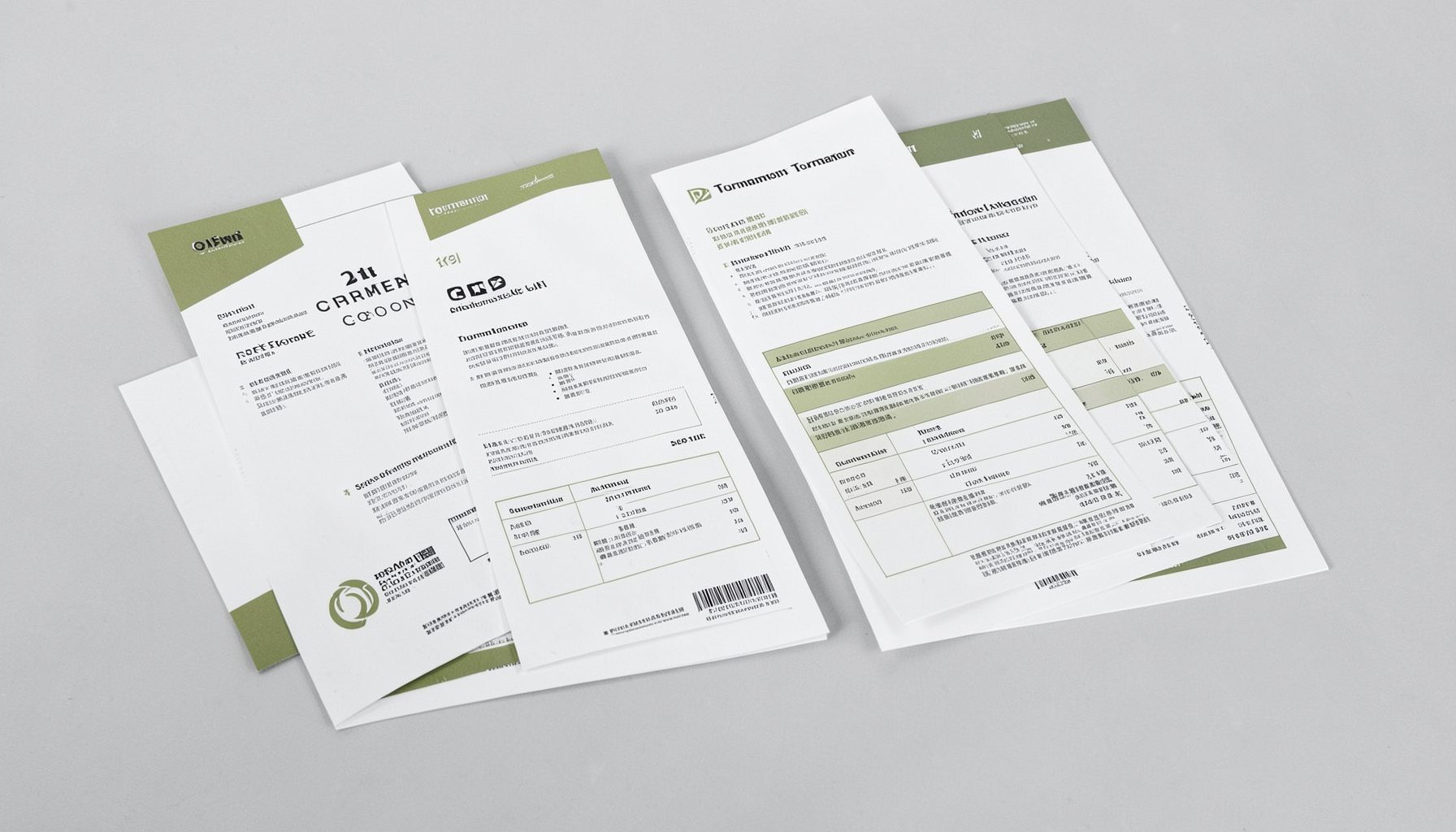
Tournament Packets
Packets from previous Kill Team events are kept here alongside new packets for upcoming tournaments, so organizers and players have what they need in one place.
View Event Data