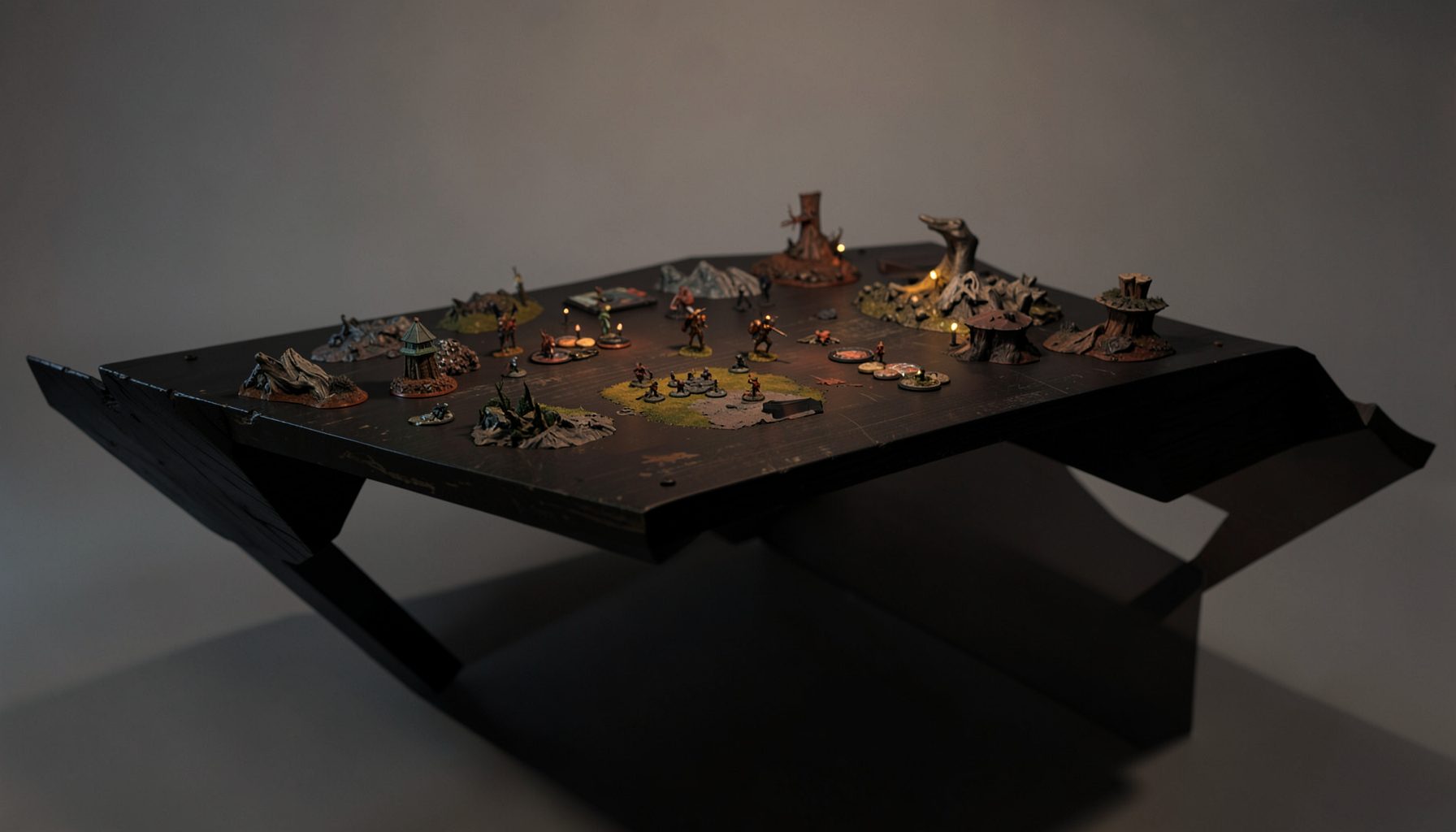
Live-streamed games, recorded matches, and event data gathered in one place.
Kill Team Stream hosts quality live streaming of Kill Team content — tournaments throughout the year on Twitch, regular games streamed to the channel, and tournament data gathered so players can see what's happening in the scene. Powered by WARHAMMER.
Browse tournamentsOfferings
Tournaments
Multiple Kill Team tournaments hosted throughout the year, all live-streamed on our Twitch channel.
Videos
Streams are recorded and uploaded to YouTube alongside original video content we produce.
Event Data
Tournament packets from past events plus resources for upcoming Kill Team tournaments.
Site Directory
The best free software for recording and editing your battle reports
Kill Team battle reports sit between a highlight reel and a coaching tool. A strong report gives context: which operator or squad made the decisive choice, how terrain shaped firing lanes, and what the result meant. Free software can carry that story from raw table footage to a polished YouTube or Twitch feature without a production licence.
The practical approach is to separate capture, sound editing and final editing. OBS Studio handles live scenes and recording, Audacity cleans commentary, and DaVinci Resolve, Kdenlive or Shotcut assemble the finished battle report. Screen capture, camera feeds, gameplay overlays and post-production form a repeatable pipeline for club channels, giving Kill Team Stream contributors a practical way to turn tournament footage into material that teaches as well as entertains.
Australian clubs often stage tournaments in halls, converted warehouses and community rooms across Sydney, Melbourne, Brisbane, Perth and smaller regional centres. Many operate on volunteer budgets, making no-cost tools more than a novelty. Those spaces are practical but acoustically unpredictable, and many venues have limited power or weak mobile signal. As many households use NBN plans and fixed-line services, upload speed still varies, so recording locally and editing offline is a sound default for tournament organisers.
Plan the report before touching the software
Start with the report’s purpose rather than the software’s feature list. Decide whether it is a match debrief, rules explainer, narrative highlight package or a combination. A local event recap needs fewer angles than an instructional piece, while a tournament final may need sponsor reads, standings context and a clean interview.
Write a simple shot list before the first round: wide establishing view, overhead board feed, operator close-ups, reaction shot, results screen and commentary. Leave gaps for action that happens between planned views. A phone on a mini tripod can cover a static wide shot, but a second phone or USB webcam often provides a more useful close-up than a heavily cropped digital zoom.
Assign one person to monitor levels, batteries, storage and the master recording, even when that person is also commentating. Test every camera and microphone before doors open, then save a short slate with the event name and date. It can prevent a missing take from going unnoticed and make audio alignment easier.
Capture scenes and match footage with OBS Studio
OBS Studio is the strongest all-round free choice for recording a battle report because its scene system handles cameras, a webcam, capture cards, browser sources, gameplay footage and audio meters without a watermark. Create separate scenes for the pre-game setup, tabletop action, results and a black closing screen. Simple cuts suit viewers following strategy, while a clean fade can distinguish tournament segments.
Record at 1920×1080 and either 30 or 60 frames per second, depending on whether smoother miniature movement or reduced file size matters more. Keep the observer camera locked, since constant reframing looks less professional than a stable wide shot. OBS saves MKV locally for resilience, but remuxing the file to MP4 after the event can simplify later uploads.
When a segment explains a rules change, place a concise card on screen and point viewers to rules update insights for background. Capture a clean insert of the relevant rules page or a short diagram rather than relying on a blurry camera angle. This is especially useful when a commentary track and tabletop feed drift out of sync.
Separate commentary from table audio
Sound often decides whether a free production feels professional. Record commentary separately from the table whenever possible, using a USB microphone, lapel mic or phone at the commentary station. Keep the main battlefield audio in OBS, but place the voice recorder close to the speaker and save it as a distinct track. A short clap or spoken slate at the start makes alignment straightforward.
Audacity is a dependable free audio editor for trimming breaths, repairing clipped words, reducing hiss and levelling inconsistent commentary. Apply noise reduction lightly because aggressive filtering can make a live tournament sound artificial. A compressor can even out sudden loudness, while a high-pass filter can help remove low rumble from traffic or generators. Keep an untouched original recording as the master.
Australian tournament halls can be noisy, especially when an air conditioner, PA system, neighbouring street or folding chairs dominate the room. A windscreen, positioned microphone and closed-back headphones on the commentator often solve more than expensive software. Check for echo by recording a sentence from the exact commentary position, and conduct the test with a comparable crowd size.
Choose an editor for your computer and skill level
DaVinci Resolve is the most capable option in the free category, with a strong timeline, Fairlight audio tools, subtitles and excellent colour correction. Its interface can feel dense, and editing 4K multicamera footage may be demanding on a modest laptop, so lower the preview resolution and use optimised or proxy media before the event. Kdenlive is a lighter, open-source alternative with strong keyframing and title effects.
Shotcut suits creators who want a clear editing layout, broad filter support and quick exports without the learning curve of a professional suite. It is less sophisticated for advanced audio mixing and colour work, but that is rarely a problem for a focused ten-minute battle report. If you publish several reports each month, test all three with your actual footage and choose the one your team will keep using.
Build the edit around a clear narrative: establish the match and deployment, show the pivotal action, explain the decision, then reveal the result and its lesson. Use close-ups to hide continuity errors and save establishing shots for orientation. Add a brief freeze frame when explaining a targeting or movement rule, but remove long periods of dead air before the story begins.
Build clear graphics, captions and transitions
Graphics should clarify rather than compete. Build lower thirds for player names, team names, round numbers and results, and keep them outside the miniature battlefield. OBS supplies a useful live preview, while Resolve, Kdenlive and Shotcut can create reusable title presets inside the finished edit. Confirm any faction artwork or event logo before publishing, and avoid crowding every frame with scores.
Captions improve access for viewers watching on a train, at a noisy venue or without sound. Free tools such as Whisper or Faster-Whisper can generate a draft transcript locally, while Aegisub or Subtitle Edit helps with timing and corrections. Always check specialist terms, names, place names and Australian slang because automatic speech recognition may turn them into nonsense.
Keep transitions functional: a short fade between rounds, a branded lower third and a clean end card are enough for most tournament channels. Consistent fonts and colours make a small production look deliberate, while animated packs can date the report quickly. Save reusable graphics as templates and check that they remain legible on a phone, where many Australian viewers will watch.
Organise exports and publish for Australian viewers
Export from the editor in a widely supported format such as H.264 or H.265 MP4, then use HandBrake if you need a smaller file for a slower connection. Keep the highest-quality master available because social clips and future re-edits should not begin with compression artefacts. Test the final upload privately and watch it on both a desktop and a phone before scheduling it.
Use a predictable folder structure with separate folders for the event, each round, camera files, recorded audio, project files, graphics and finished exports. Name files with the event, date, round and edit version rather than relying on “final” or “final2”. Back up the master to another drive and a cloud service that meets your club’s privacy obligations.
YouTube works well for searchable reports, while Twitch can carry a live watch party, prematch setup and shorter clips. GIMP provides a free route to thumbnails, and both platforms offer free analytics that reveal whether viewers stay for the strategy segment or leave after the result. Australian audiences span time zones: a Perth report may reach eastern states the next morning, so a scheduled premiere can serve both regions better than an immediate upload.
Handle consent, privacy and rights in Australia
Obtain permission before recording identifiable commentary and check the tournament venue’s filming rules. Being visible at a public tabletop does not automatically mean every participant agrees to appear in a promotional video. State and territory laws on recording and privacy differ, and venue policies may be stricter, so a simple written or verbal consent form is safer than an assumed blanket waiver. For minors, seek parent or guardian approval.
For an incorporated club, paid tournament organiser or commercial channel, the Privacy Act 1988 and Australian Privacy Principles may apply to identifiable footage, personal information and cloud services. Thresholds and exemptions vary, so organisers should confirm their obligations and publish a basic privacy notice when appropriate. Avoid sending unreviewed clips of private conversations to free online transcription tools, and remove personal details from thumbnails or credits where they are unnecessary.
Copyright needs separate attention. A free editor does not grant permission to use a commercial soundtrack, unreleased music or large sections of game artwork and rules, and an event’s public performance permission may not cover online use. Use licensed or appropriately cleared tracks, quote only what the commentary needs, and credit photographers and rule sources. When sharing screen captures, identify the source and avoid implying official endorsement.
For most Australian community productions, OBS Studio plus Audacity and one dependable editor create a capable no-cost core. Add GIMP, HandBrake, Aegisub and local backups as the report requires. The durable workflow is simple: plan the shots, capture clean tracks, edit the decisive moments, check captions and permissions, then preserve the high-quality master before publishing.
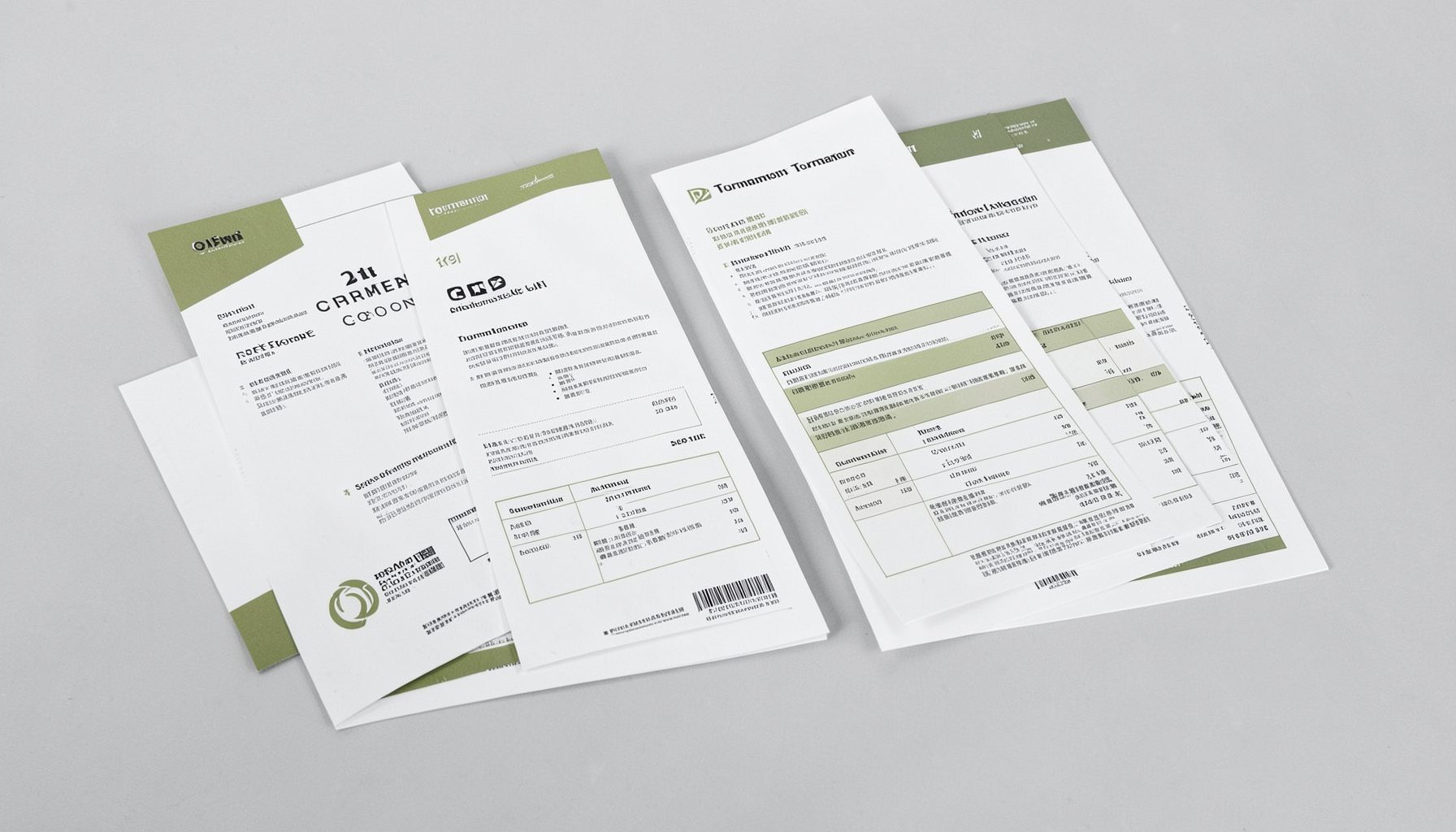
Tournament Packets
Packets from previous Kill Team events are kept here alongside new packets for upcoming tournaments, so organizers and players have what they need in one place.
View Event Data